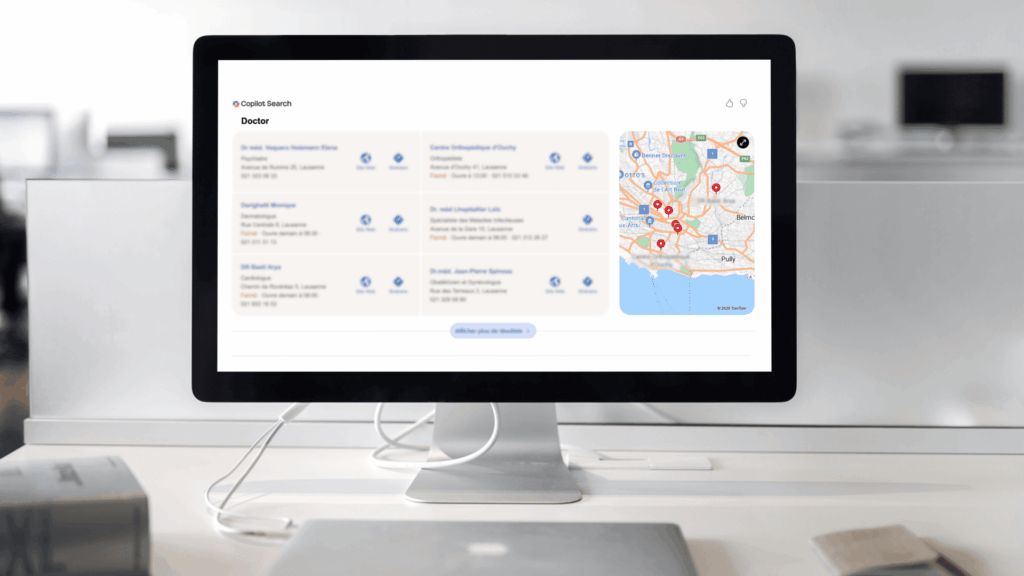
When we talk about online visibility for a medical practice, tools like Google Business Profile, OneDoc, Well and Compassana are often mentioned.
Yet with Bing Places for Business, healthcare professionals have a free and easy‑to‑set‑up tool to improve their online presence, especially on Bing Search and Bing Maps. In this article, discover the advantages of Bing Places for Business and how to easily create your listing.
What is Bing Places for Business?
Bing Places for Business (sometimes called Bing My Places) is the local listing service offered by Microsoft. It’s the Bing search engine equivalent of Google Business Profiles. Although less popular and used, it allows businesses, including medical practices and care centres, to create and manage their online profile page so they appear:
- In Bing’s local search results
- On Bing Maps (Bing’s version of Google Maps)
- In responses from AI‑based tools like ChatGPT, Microsoft Copilot, and other assistants using Bing as a data source.
Why create a Bing Places for Business Profile for my medical practice?
Creating a Bing Places for Business profile lets you improve your practice’s online visibility, appear on Bing Maps and in Bing’s local results, and be found more easily by new patients.
Improve your online visibility with new patients
Even though Bing is used less than Google, it is integrated by default into many environments:
- Windows computers
- The Microsoft Edge browser
- Conversational assistants like Microsoft Copilot
More and more internet users are using these tools to search for a doctor, physiotherapist, or specialist near them. In addition, because Bing comes preinstalled on Windows computers, a significant number of patients use it — especially older people who may not know how to change the default search engine. In fact, nearly 7.5% of the population uses this search engine according to Statcounter, making it the second most used search engine in Switzerland!
Gain Online Visibility with OneDoc

Be visible on Bing Maps
If you’re wondering how to be visible on Bing Maps, the answer couldn’t be simpler: by creating and optimizing a Bing Places for Business profile. By entering your address in your account, your practice will automatically appear on Bing Maps.
A well‑listed medical practice on Bing Maps allows you to:
- Be easily found by patients
- Be featured in local search results
- Allow patients to view your opening hours
- Give patients a reliable route to your practice
- Enable patients to call you with one click
- See the ratings and reviews left by patients

How to create a Bing Business Profile?
To create your profile on Bing, you have three options: import your data from your Google Business Profile, claim an existing Bing Places listing, or create your profile from scratch. The simplest and most effective way is to import the information directly from your Google Business.
1. Import data from Google Business Profile (recommended)
This is the simplest and fastest way to create a Bing Places for Business account. If you already have an account, the process only takes a few minutes. Simply go to Bing Places for Business, sign in, and click “Import from your Google Business listing”.
Even if you don’t yet have a Google Business Profile, we recommend starting there. Indeed, a Bing account can be created from Google, whereas the reverse isn’t possible. In addition, the visibility offered by Google Business Profile remains a major local SEO asset for medical practices, since Google is used by nearly 90% of Swiss users. Thanks to our partnership with Google, you can also benefit directly from a “book online” button on your Google Business Profile.
After importing, we recommend that you always manually review your Bing profile to correct any outdated information and take advantage of the optimization suggestions provided by the platform.
2. Claim an existing Profile
In some cases, your listing may already exist on Bing through public data. In this case, you simply need to claim it. To do this, log in to Bing Places for Business and when prompted to create your listing, Bing will automatically ask you to search for your business name. If it appears in the list, simply click the “Claim listing” button and you’re all set!
Don’t forget to update the information and use the assistant’s suggestions to optimize your listing once claimed.
3. Create a profile from scratch
To create a listing, go to the Bing Places for Business website and click “Create your Bing profile in three steps.” Then simply fill in the requested information and verify your account (usually by mail). We recommend optimizing your profile using the suggestions offered by Bing’s assistant.
However, as mentioned earlier, if you create only one profile, it’s best to start with a Google Business Profile, then import it into Bing. This way, you’ll have two consistent and complete listings while boosting your online visibility on both major local search engines.
Is creating or claiming a Bing Places for Business free?
Yes, Bing Places for Business is a 100% free service with no subscription. It’s a tool provided by Microsoft to improve local search result quality on Bing and can boost your local visibility.
What are the new features in Bing Places for Business?
Microsoft has recently enhanced Bing Places for Business by adding more automation and AI-based features. These improvements come from close feedback with professionals using the platform. The goal is to offer a smoother experience and simplify online presence management.
Notable updates include a smart assistant to help optimize your profile. It provides personalized recommendations based on your business type and helps identify relevant information to complete or improve the profile.
Another major improvement is the smart completion of key information. The idea is to help you easily fill out your profile and encourage more engagement from users.
Bing Places for Business: A strategic asset for your medical practice
In a world where patients use search engines to find healthcare professionals, Bing Places for Business is a simple and free opportunity to strengthen your practice’s visibility.
Bing acts as a complementary channel to Google to enhance your online presence and facilitate access to care.
When integrated into a broader digital strategy — including a well-performing website and an online appointment solution like OneDoc — Bing Places becomes an additional asset to grow your practice and improve patient experience.